How it works
Two flows: one for you, one for your guests.
Your side is three steps, done once. Your guests' side needs no instructions at all — scan, pick a language, read.
Video walkthrough
The whole workflow in seven minutes
Creating an event, choosing the audio source, the floating captions, guests joining by QR code, and translated voices — recorded in the real product, not an animation.
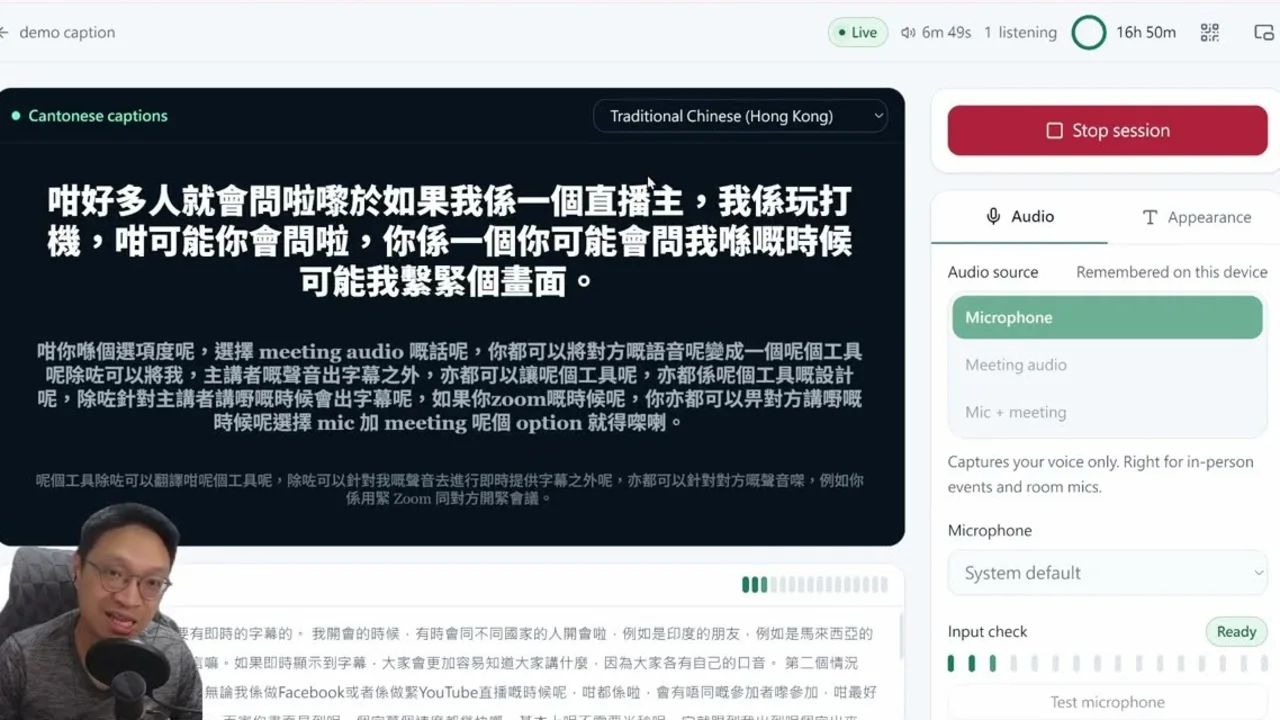
Narrated in Cantonese.Watch on YouTube
The presenter flow
Runs on whichever computer is playing the meeting audio.
01
Create the event and get your QR code
Name the event and choose the translation language. The guest link and QR code are generated immediately, ready to drop onto your opening slide.
The link is stable, so you can send it out a week in advance.
02
Pick your audio source and test it
"Microphone" translates you. "Meeting audio" translates remote speakers coming out of your computer. "Both" mixes them. A live level meter shows whether sound is actually arriving.
Microphone-only silently drops every remote speaker — the most common setup mistake, which is why this step is impossible to skip past.
03
Start, then move the captions out of the way
Once running, pop the captions into their own floating window and drag it to a corner or a second display.
You can share slides full-screen and still watch what your audience is reading.
Audio source
Level
Drag anywhere — never covers your slides
About two minutes from signup to your first caption.
Continue with Google, create an event, share the QR code. That is the whole setup.
The guest flow
No account, no install, and no need to join your meeting.
Choose language
歡迎各位,感謝出席今天的例會。
Scan the QR code
Phone camera on your opening slide, or tap the link you sent out.
Choose a language
From the languages you opened for that event. Every guest chooses independently.
Toggle captions and audio
Captions only, audio only, or both. Volume and text size are theirs to set.
After the event
Each session's source text, translation and summary are filed under that event. Sign in to download them for minutes, follow-ups, or repurposing the content.
Event record
What happens underneath
The presenter page captures audio in the browser and streams it to a room dedicated to your event. That room keeps one source-caption connection and a separate connection for each enabled translated voice, then distributes language-tagged captions and audio to every guest. Usage is written every 15 seconds, so the balance you see is measured rather than estimated.
- No plugin or desktop software to install
- Guest connections are separate from yours — a guest dropping off does not interrupt translation
- Brief network interruptions reconnect automatically
- Running out of balance ends the session safely, with no surprise charges
One limit worth knowing first
On macOS, Chrome can capture browser tab audio but not the audio of the Zoom desktop app. If you host from a Mac, join the meeting in a browser tab, or present from Windows. The interface says so up front rather than letting you discover it mid-event.
Works with the platform you already use
- Zoom
- Microsoft Teams
- Google Meet
- YouTube Live
- Facebook Live
- LinkedIn Live
tlive takes audio from the presenter's computer, so no platform plugin is required. All trademarks belong to their respective owners.
Don't take our word for it — run one yourself.
Sign up and test captions or translated voices with your own material. The one-time trial includes 20 credits.